
Exporting to Excel takes seconds. Keeping track of what happens next is rather more complicated.
You need to analyse the sales pipeline, prepare a report for the board or give Finance the figures they requested ten minutes ago. Naturally, your first thought is to export the data from Dynamics 365 into Excel.
It makes sense. Excel is familiar, flexible and rather good at turning rows of information into something people can filter, analyse and present. A few clicks later, the spreadsheet is in your downloads folder, ready to use. But before you press Export, it is worth stopping for a moment.
Not because exporting CRM data is always a bad idea. It is often useful and sometimes essential. The question is whether you understand what happens to that information once it leaves Dynamics 365 and whether your business can still keep an eye on it.
How to export data from Dynamics 365
Let’s begin with the reason you probably landed here: you need to get some data out of Dynamics 365 and into Excel.
The basic process is simple:
- Open the relevant area of Dynamics 365, such as Accounts, Contacts, Leads or Opportunities.
- Choose the view containing the records you need.
- Apply filters to narrow down the information.
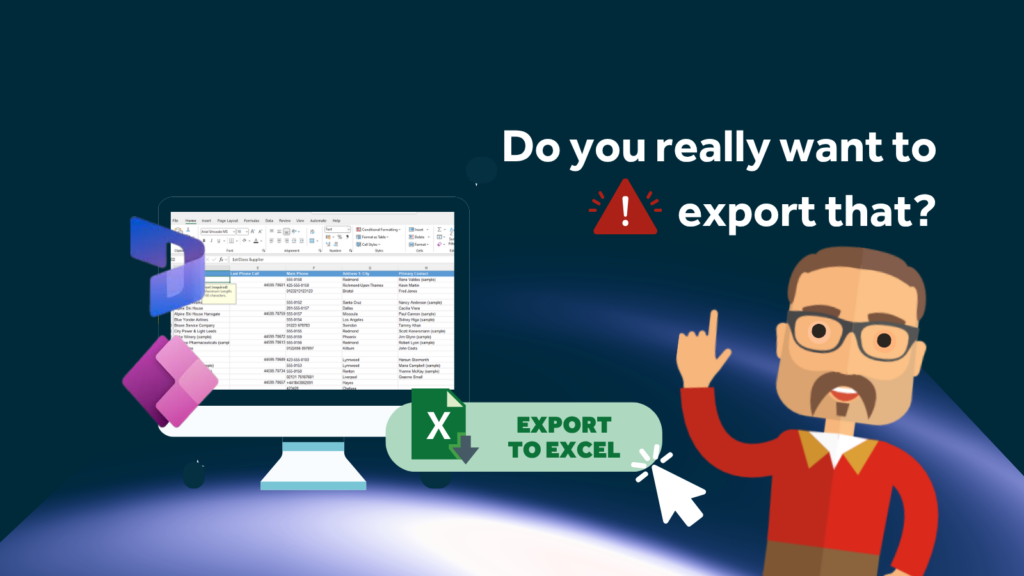
- Select Export to Excel from the command bar.
- Choose the columns you want to include.
- Click Export and download the file.
Your spreadsheet will then be ready for sorting, filtering and whatever else prompted the export in the first place.
Depending on your Dynamics 365 setup and permissions, you may also see several export options:
- A Static Worksheet gives you a snapshot of the information at that moment. It will not change when records in your CRM are updated.
- A Dynamic Worksheet remains connected to Dynamics 365, allowing the information to be refreshed.
- A Dynamic PivotTable provides a connected PivotTable for further analysis.
Our guide to exporting data from Dynamics 365 and Power Apps explains these options in more detail.
So far, so straightforward. You find the data, choose the export, and Excel does its thing.
The more important question is whether you really need to export it at all.
Before you export, stop and think.
As the moment you download a spreadsheet; you create a copy of your CRM data outside its usual controlled environment.
Inside Dynamics 365, access can be managed through security roles. Records are updated centrally, and everyone should be working from the same information.
HOWEVER, an exported spreadsheet is different. It might be saved to a desktop, attached to an email, uploaded to a shared drive or copied into another system. It may be duplicated, renamed, and passed between colleagues until nobody is entirely sure which version they should use.
This does not mean you should never export. It simply means that clicking the button should be a conscious decision rather than a reflex.
Before downloading anything, ask yourself a few questions:
- Do I genuinely need to export this information?
- Could I complete the task within Dynamics 365?
- Have I selected the correct view and filters?
- Do I need every record?
- Do I need every column?
- Does the export contain personal, confidential or commercially sensitive information?
- Where will the file be stored?
- Who will be able to access it?
- How long should it be kept?
- Who will delete it when it is no longer needed?
This does not need to become a twelve-stage approval process involving three departments and a ceremonial signing of the spreadsheet. It is simply about treating exported CRM information as valuable business data rather than another disposable office file.
What can happen after the data leaves your CRM?
Most export risks do not involve somebody deliberately stealing information. They usually begin with an ordinary employee trying to complete an ordinary task.
Someone exports more data than they need because it is quicker than choosing individual columns. A spreadsheet is attached to the wrong email. A file is saved somewhere insecure or remains on a laptop long after the task has finished.
Then there is the problem of accuracy. A static worksheet may be correct when it is downloaded. Meanwhile, Dynamics 365 continues to change. Customers update their details, opportunities progress, and colleagues correct records.
By Friday afternoon, somebody may still be using Tuesday’s spreadsheet and wondering why the figures do not match the CRM. Before you know it, several versions are circulating, all with reassuring filenames such as “FINAL”, “FINAL 2” and “FINAL DEFINITELY USE THIS ONE”.
Dynamic exports solve the stale-data problem by enabling information to be refreshed, but they still require careful management. Users need to understand what the connection provides access to, where the workbook is stored and who can use it. Whichever option you choose, an export creates another place where important information must be protected.
Why not switch exporting off completely?
If exporting poses a risk, the obvious answer might be to remove the option altogether.
For certain users, roles or particularly sensitive information, that may be the right decision. However, the standard Dynamics 365 export permission can be rather blunt.
Leave exporting switched on and users can access the information they need, but administrators have limited visibility of what is being downloaded. Switch it off and legitimate tasks become more difficult.
The need for the data does not disappear simply because the export button has. Instead, users may start copying and pasting records, taking screenshots or creating unofficial spreadsheets that are even harder to monitor.
As we explained in A Quick Way to Fix Data Exports in Microsoft Dynamics 365, most organisations do not need to choose between allowing every export and banning them altogether.
They need a practical middle ground: employees can export the information they genuinely require, while the business retains some visibility of what is leaving the CRM.
The missing piece is visibility.
Imagine discovering that thousands of customer records were exported from your CRM last week.
Your first questions would probably be:
- Who exported them?
- When did it happen?
- Which records were included?
- Why were they needed?
Without export tracking, finding those answers is really difficult.
Dynamics 365 allows you to manage who has permission to export, but that does not necessarily provide a clear, accessible picture of every export.
We looked at this challenge in The Importance of Tracking Excel Exports in CRM Systems. Restricting access is only part of the solution. Organisations also need to understand how authorised users are using that access. That is where Excel Tracker comes in.
How Excel Tracker helps minimise the risk
Rocket CRM’s Excel Tracker is designed for organisations using Dynamics 365 or Power Apps that need to balance data protection with the practical way their employee’s work.
Rather than placing a roadblock in front of every export, Excel Tracker logs export activity and presents it through a simple dashboard.
Administrators can see information such as:
- Who exported the data
- When the export took place
- Which view was exported
- How many records were included
That record gives you a sensible starting point if something looks unusual or a data protection concern arises.
For example, a particularly large export can be investigated. Repeated exports of the same information may reveal that a team needs a better report inside Dynamics 365. An unexpected export by somebody preparing to leave the organisation can be reviewed promptly.
Tracking is not only about catching people doing something they should not. It can identify inefficient processes, unnecessary data handling, and gaps in training before they become considerably larger problems.
Excel Tracker supports control without stopping work
Have a quick read of why data exports are not the enemy—but a poor CRM data protection strategy is. That remains the key point. Excel Tracker cannot prevent somebody from attaching a spreadsheet to the wrong email, and it will not magically turn every user into a data protection expert. What it does is replace “we have absolutely no idea” with a clear record of who exported information and when.
Combined with sensible permissions, staff guidance and appropriate data-handling policies, that visibility helps organisations reduce the risks without making everyday work unnecessarily difficult.
Users can still access the information they need. Administrators gain a clearer picture of what is happening and the business is in a much better position to investigate unusual activity. Et voila! Export if you need to, but keep an eye on it!
Exporting data from Dynamics 365 can be genuinely useful. Sometimes it is the quickest and most practical way to analyse information, produce a report or work with another approved system. Just remember that the moment the file downloads, your data has left the controlled environment of your CRM.
Before clicking Export to Excel, ask whether you genuinely need to. If the answer is yes, export only the necessary information, store it carefully and make sure your organisation can see that the export happened.
Stop guessing what is leaving your CRM
If your Dynamics 365 users can export customer and business information, you need to know what is leaving the system, when and by whom. Crossed fingers and good intentions are not much of a security strategy.
Excel Tracker gives you that missing visibility without stopping your team from getting on with their work.
Try Excel Tracker free for 14 days. No credit card is required, and there is no obligation to purchase.
Prefer to talk it through first? Have a free, no-jargon conversation with Rocket CRM and find out whether our Excel Tracker is right for your organisation.
ABOUT ROCKET CRM
Rocket CRM is a Microsoft Dynamics 365, and a platinum Click accredited partner, helping small to medium-sized businesses and charities harness the power of scalable CRM technology. Our mission is to make powerful CRM software simple with custom-built, user-focused solutions.
Website: rocketcrm.co.uk
Podcast: RocketPod
Social: LinkedIn